

5 Minute Registry Check for ONVIF Camera Compatibility for Technicians
The only real proof a camera is ONVIF conformant is a matching entry, exact model and exact firmware version, in the ONVIF Conformant Products registry. A spec sheet claiming “ONVIF compatible” is a marketing statement, not a certification. Profile S covers basic streaming and PTZ, Profile T adds H.265 and richer events, Profile G handles edge recording, and Profile M standardizes analytics metadata. Check the registry first; if you can’t, run WS-Discovery on your network to confirm the device even announces itself correctly.
TL;DR:
- A camera’s ONVIF conformance is only confirmed if it is listed with an exact model and firmware version in the official registry, not just claimed as compatible.
- Verifying ONVIF support involves checking model registration, enabling ONVIF, creating a dedicated user, performing network discovery, and testing streaming functions individually.
- Support issues often stem from authentication errors, blocked ports, codec mismatches, profile mismatches, or disabled features, rather than lack of compliance.
- ONVIF conformance certifies interoperability, not security; proper network hardening steps must be taken separately from device compatibility.
- Confirming conformance beforehand through the registry can prevent hours of troubleshooting and ensure reliable integration with existing surveillance systems.
Table of Contents
- Quick Checklist: How Do You Verify ONVIF Camera Compatibility?
- ONVIF Profiles Explained: What Do S, T, G, and M Actually Guarantee?
- Why Do ONVIF Cameras Still Fail to Integrate?
- Does ONVIF Compatibility Mean the Camera Is Secure?
- How Safes and Security Solutions Checks Compatibility Before Listing a Product
- Where to Verify ONVIF Conformance Yourself
- What the Conventional ONVIF Advice Gets Wrong
- Get an ONVIF-Verified Security Camera System Without the Guesswork
- Sources
Quick Checklist: How Do You Verify ONVIF Camera Compatibility?
Skip the guesswork and work through these steps in order. Each one either confirms compatibility or tells you exactly where the integration is going to fail before you’ve wasted an afternoon on it.
- Look up the exact model and firmware. Search the Conformant Products registry for your camera’s precise model number and firmware version. A different firmware build on the same model can be listed separately, or not listed at all.
- Turn on ONVIF in the camera’s web interface. Most brands bury this under a menu like Network, Integration Protocol, or Advanced Settings, and it’s frequently disabled by default even on conformant hardware.
- Create a dedicated ONVIF user account. Don’t reuse the admin login. A separate account with limited privileges isolates the integration and makes troubleshooting cleaner later.
- Run discovery. Use WS-Discovery, built into most VMS and NVR platforms, to confirm the camera actually broadcasts itself on the local network. If it doesn’t show up here, nothing downstream will work.
- Open a test stream. Connect with a Profile S or Profile T capable client and verify video, then PTZ movement, then audio if the camera supports it. Test each function individually rather than assuming one working feature means they all work.
- Log the firmware version before touching anything. Write down the current build number. If you update firmware later, re-check the registry, because conformance is tied to that specific version.
Pro Tip: Test the camera on its factory firmware before updating anything. If it fails ONVIF discovery on stock firmware, you know the problem is configuration, not a firmware regression, and you’ve saved yourself a rollback.
ONVIF Profiles Explained: What Do S, T, G, and M Actually Guarantee?
Profile compliance tells you what a device is required to do, not everything it might do. That distinction is where most integration surprises come from.
- Profile S is the baseline for basic video streaming, PTZ control, and audio, and it remains the industry standard most NVRs and VMS platforms build around, according to Pelco’s rundown of ONVIF protocols.
- Profile T builds on that with H.265 support, advanced streaming, and motion and tamper event handling, which matters increasingly as networks move away from older H.264 encoding.
- Profile G covers edge recording and retrieval, the profile you need when a camera or NVR stores footage locally and a client needs to pull it back out later.
- Profile M standardizes analytics metadata, so object detection or line-crossing events from one vendor’s camera can be read correctly by another vendor’s software.
Inside every profile, ONVIF splits features into mandatory and conditional categories, and a conditional feature only has to work if the device supports the underlying hardware for it, per the Profile S feature overview. That’s the detail vendors gloss over. A camera can be fully Profile T conformant and still not expose a feature you expected, because that feature was conditional and the manufacturer chose not to implement it. Profile matching tells you the floor, not the ceiling.
Why Do ONVIF Cameras Still Fail to Integrate?
A vendor printing “ONVIF compatible” on a data sheet means the camera speaks some ONVIF commands. It does not mean the exact firmware on your unit passed the official conformance test, and that gap is where most support tickets originate. Registry entries are tied to specific firmware builds, and a device can implement ONVIF protocol calls without ever completing the actual test process, per ONVIF’s conformant products documentation.
The failures tend to repeat across installs:
- Authentication problems. The ONVIF user account either wasn’t created, was created with the wrong permission level, or got locked out after a password policy change.
- Blocked ports or firewalls. ONVIF relies on specific ports for discovery and media streaming, and a misconfigured firewall or VLAN rule silently drops the traffic.
- Codec mismatches. A camera streaming H.265 won’t play on a client that only decodes H.264, even though both sides claim ONVIF support.
- Profile mismatches. Your VMS expects Profile T event handling; the camera only implements Profile S.
- Features disabled at the firmware level. Some manufacturers ship ONVIF support toggled off, or restrict it to a specific configuration mode.
When something breaks, work through it in order: confirm the registry entry, test discovery, test the stream, swap in a different client to isolate whether the problem is the camera or the software, and pull logs from both sides. Testing against a camera or client already known to be conformant gives you a control to compare against, an approach backed by community compatibility data showing which brands and models reliably hit Profile S and T. If a firmware update caused the regression, rolling back is often faster than debugging forward.
Pro Tip: Keep one known-good ONVIF camera on the bench. When a new device fails, swap it in place of the questionable one. If the known-good camera works fine on the same network and client, the problem is isolated to the new hardware, not your setup.
Escalate to vendor support when the registry confirms conformance but the device still fails, since that usually points to a bug worth reporting. Plan for replacement when the model was never listed at all, or when the specific firmware version you’re stuck on has no conformant registry entry and the vendor won’t issue an update.
Does ONVIF Compatibility Mean the Camera Is Secure?
No, and this is where a lot of otherwise careful installs go wrong. ONVIF conformance verifies interoperability, meaning the camera speaks the protocol correctly. It says nothing about whether the device resists intrusion, according to ONVIF’s own profile documentation, which addresses cybersecurity separately from conformance testing. Treat network hardening as a parallel job to compatibility, not something the ONVIF badge covers for you.
A short hardening checklist that applies to any conformant camera:
- Change every default password immediately, including the ONVIF-specific account you create.
- Give ONVIF accounts least-privilege access rather than admin rights.
- Segment cameras onto their own VLAN, separate from office or guest networks.
- Restrict ONVIF access by IP address where your NVR or VMS supports it.
- Only install firmware from the manufacturer’s official source, and verify signatures where available.
Schedule firmware updates during planned maintenance windows, and re-verify the registry entry afterward since conformance is version-specific. Keep a log of what firmware ran when, both for troubleshooting and for any privacy or access-control compliance requirements tied to camera footage.
How Safes and Security Solutions Checks Compatibility Before Listing a Product
Before a camera or PoE security system reaches our catalog, we confirm the model and firmware against manufacturer documentation and run a live stream test rather than taking a spec sheet at its word. We check that video, PTZ where applicable, and basic discovery behave the way a buyer expects before that product goes live.
The PoE IP camera systems and NVR kits we stock are chosen because they hold up under real network conditions, not just a marketing claim of ONVIF support. If you’re setting one up for the first time, our home surveillance installation guide walks through the same discovery and configuration steps covered above, applied to an actual residential setup.
If you’re not sure whether a system you’re eyeing will play well with your existing recorder, reach out before you buy. We’d rather answer that question upfront than have you troubleshoot it after installation.
Where to Verify ONVIF Conformance Yourself
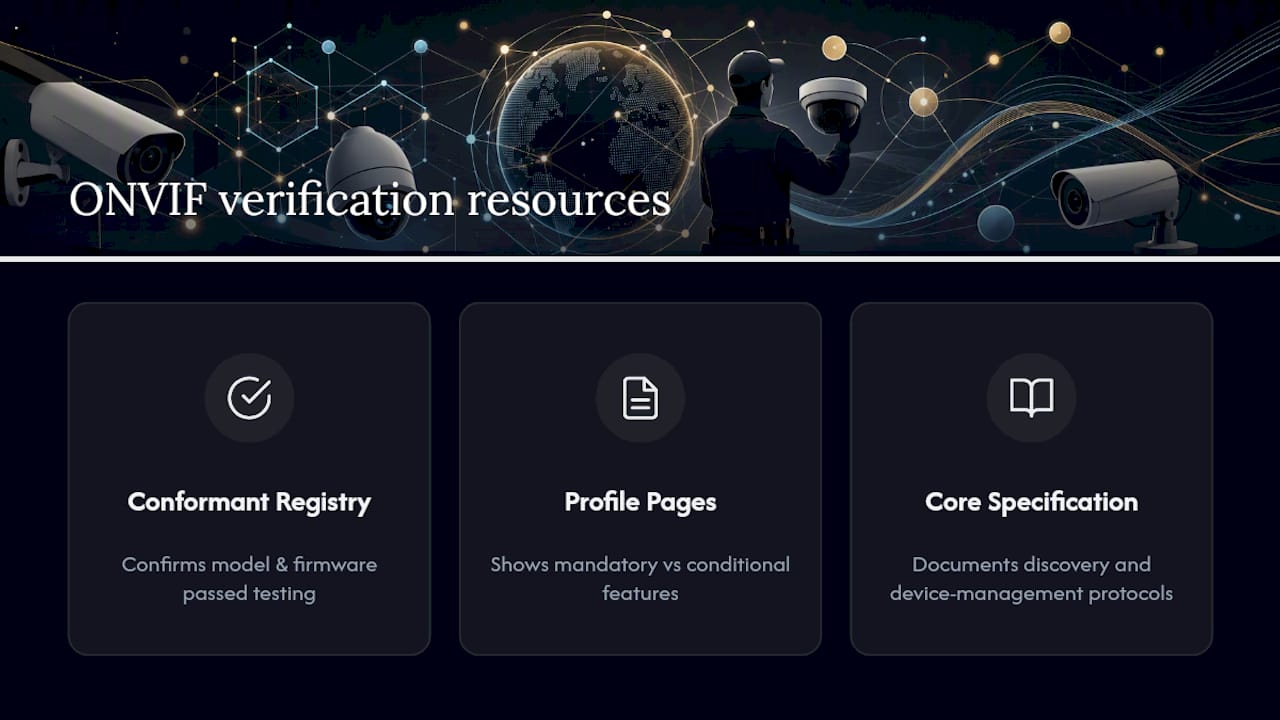
Three resources cover almost everything a technician needs beyond this guide. The ONVIF Conformant Products registry is the only authoritative source for confirming a specific model and firmware passed testing. The ONVIF profile pages break down exactly which features are mandatory versus conditional within each profile. The ONVIF Core Specification documents the discovery and device management protocols that everything else depends on.
What the Conventional ONVIF Advice Gets Wrong
Most guides treat “ONVIF compatible” as a binary. It isn’t. The real question is always narrower: does this exact model, on this exact firmware, support the specific profile features your NVR or VMS needs? That’s a harder question than most buyers want to answer, so vendors and even some integrators default to the simpler, less accurate one.
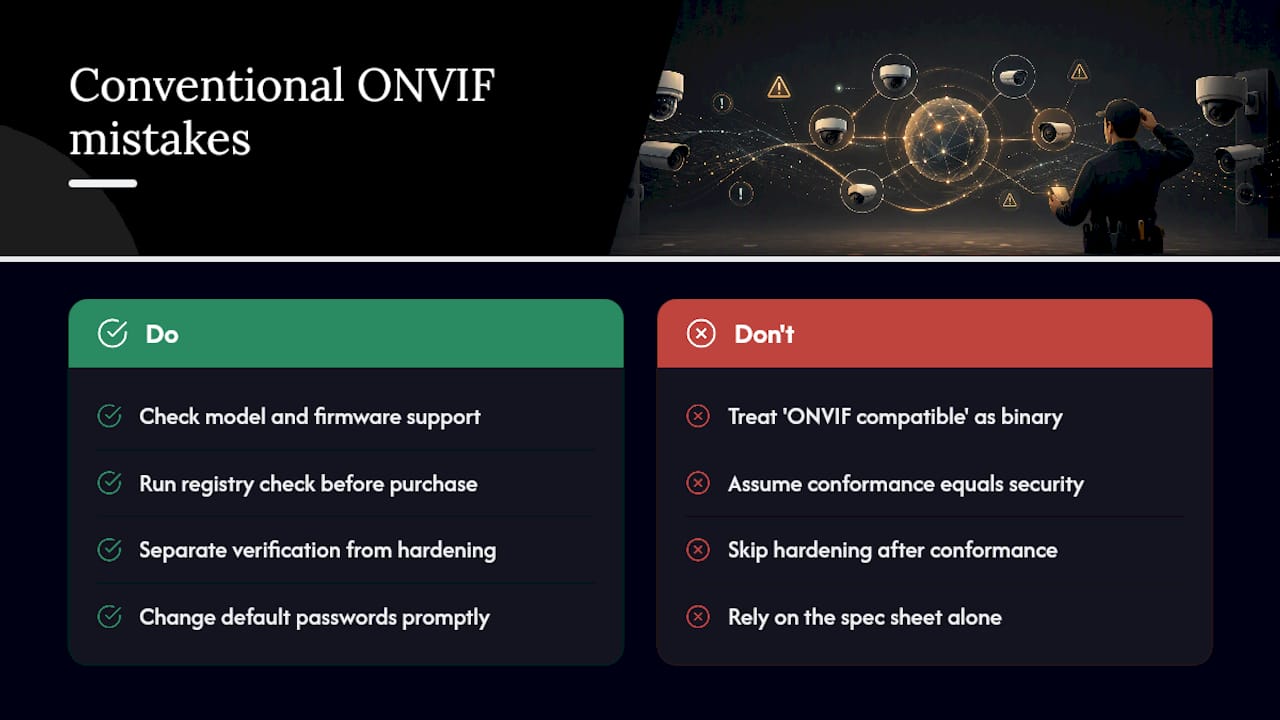
The bigger blind spot is treating conformance as a security signal. It isn’t one, and ONVIF never claimed it was. A camera can pass every conformance test and still ship with a default password nobody changed. Verification and hardening are two separate jobs, and skipping the second one because you did the first is how cameras end up on botnets.
If you take one thing from this guide, make it the registry check, done before purchase, not after installation. It’s a five-minute lookup that prevents a multi-hour troubleshooting session, and it’s the step buyers skip most often because the spec sheet already told them what they wanted to hear.
— Safes and Security Solutions
Get an ONVIF-Verified Security Camera System Without the Guesswork
You can find camera and NVR systems where compatibility checking has been done before listing.
If you’ve made it this far, you already know that mixing an unverified camera with the wrong recorder is how a weekend project turns into a support ticket. Our catalog is built around avoiding that outcome, with PoE camera kits and NVR systems tested for the streaming and discovery behavior this guide walks through. For anyone who’d rather pair surveillance with physical protection for the footage and hardware itself, our fire and burglary safe lineup covers storage for recorders, backup drives, and other equipment you don’t want exposed if a break-in happens anyway.
Browse the current camera systems, check specs against your existing NVR, and reach out if you want a second opinion before you commit to hardware.