

The Best Cloud NVR Setup Is Usually a Hybrid, Not Pure Cloud
For most property owners, the best cloud NVR setup isn’t a cloud-only system. It’s a hybrid or edge-native NVR with cloud backup layered on top, because that combination balances reliability, bandwidth efficiency, and analytics power better than any single-mode system. A pure cloud recorder leaves you blind the moment your internet drops. A local-only NVR leaves you without off-site protection if a break-in takes the recorder with it. The fix is a system that records locally first and pushes footage to the cloud second.
Before you buy anything, do three things:
- Run an upload-speed test on your property’s internet connection (not just download speed).
- Flag which cameras cover entry points, cash handling, or high-liability zones. Those get cloud backup first.
- Contact Safes and Security Solutions for a kit recommendation sized to your channel count and retention needs.
Key Takeaways
A hybrid NVR with local recording and selective cloud backup delivers better uptime and lower long-term cost than a cloud-only system for most property portfolios.
| Point | Details |
|---|---|
| Choose hybrid or edge-native | Local recording plus selective cloud backup survives outages that a cloud-only system can’t. |
| Test bandwidth before buying | Measure actual upload speed against total camera count at your target resolution, not advertised plan speed. |
| Verify ONVIF and firmware | “Works with any camera” claims often fail on advanced features like motion zones and metadata. |
| Tier retention by camera priority | Give entry points and liability zones 60 to 90 days; cut retention or frame rate on interior cameras. |
| Match hardware to your site scale | Safes and Security Solutions offers 4 to 8 channel kits for single properties up through 32-plus channel edge-native systems for commercial sites. |
Table of Contents
- Cloud-Only vs Hybrid vs Edge-Native: Which Architecture Fits Your Property
- Decision Checklist: What to Compare When Evaluating Cloud NVR Offers
- Deployment Essentials: Bandwidth, Failover, and Integration Checks
- Product Configurations from Safes and Security Solutions
- Security and Privacy Considerations in Cloud NVR Solutions
- Step-by-Step Deployment Guide Including Configuration Best Practices
- Cost Comparison Including Total Cost of Ownership Over Time
- Common Troubleshooting Issues and How to Address Them
- When to Migrate Fully to Cloud and When to Add Cloud Backup Instead
- Get Your System Sized Right With Safes and Security Solutions
- Sources
Cloud-Only vs Hybrid vs Edge-Native: Which Architecture Fits Your Property
Every cloud NVR on the market falls into one of three camps, and picking the wrong one costs you money and uptime later.
- Cloud-only systems stream footage directly to remote servers with no meaningful local storage. They’re simple to manage and scale well across many small sites, but they live and die by your internet connection. Lose upload bandwidth and you lose recording, not just remote viewing.
- Hybrid systems record to a local NVR or DVR first, then sync selected footage to the cloud for backup and remote access. This is the workhorse category for most commercial and residential portfolios because it survives outages and still gives you off-site protection.
- Edge-native systems process video and run analytics on the device itself, using onboard AI accelerators to detect motion, people, or vehicles without waiting on a cloud round-trip. These appliances keep working and keep flagging threats even when the internet goes down entirely.
Uptime favors hybrid and edge-native. Analytics latency favors edge-native, since detection happens on-site instead of over a network hop. Bandwidth use favors edge-native and hybrid over cloud-only, because raw footage stays local and only alerts or clips travel out.
For a single home or small office, hybrid is typically the right call, enabling cloud backup for priority cameras. Multi-site residential portfolios often benefit from edge-native units at each site feeding a centralized dashboard to optimize bandwidth and alerting. Small commercial operations with liability concerns usually want edge-native analytics paired with longer cloud retention windows.
Pro Tip: If you’re not sure which category a product falls into, ask the vendor directly whether recording continues locally during an internet outage. If the answer is no, it’s cloud-only, no matter what the marketing copy says.
Decision Checklist: What to Compare When Evaluating Cloud NVR Offers
Bandwidth planning trips up more buyers than any other factor. A single 1080p camera streaming continuously typically needs somewhere in the range of 2 to 4 Mbps upload, while a 4K camera can demand 8 Mbps or more depending on compression and frame rate. Multiply that across 16 or 32 channels and you can quickly exceed what a typical business internet plan provides, especially once you factor in 30, 60, or 90 days of retention instead of the standard 7.
Run through this list before you sign a contract or place an order:
- Bandwidth math: calculate per-camera Mbps at your target resolution, then multiply by channel count and check it against your actual upload speed, not the advertised plan speed.
- Camera compatibility: confirm ONVIF support in writing, and verify the vendor’s firmware compatibility list rather than assuming “works with any IP camera” claims hold up for advanced features like motion zones or metadata tagging.
- Pricing model: per-camera monthly fees, per-gigabyte storage charges, and unlimited-tier plans all shift the total cost differently depending on retention length and egress activity. Backblaze’s B2 cloud storage illustrates this well: it charges no minimum storage duration fee and backs a 99.9% uptime SLA, which matters when you’re comparing a flat-rate plan against a pay-as-you-grow model.
- Analytics location: edge-based analytics cut cloud bandwidth and latency; cloud-based analytics can offer more processing power but add a round-trip delay and consume more upstream data.
- Management scale: check for a centralized dashboard, multi-user permission tiers, and configurable alerting before you commit to a system across more than one site.
Firmware mismatches are the single most common source of “it should work but doesn’t” complaints in multi-brand deployments. Verify compatibility before you buy, not after.
Deployment Essentials: Bandwidth, Failover, and Integration Checks
Getting the hardware right is only half the job. Getting the network and failover plan right is what keeps the system running when things go wrong.
- Test upload speed properly. Use a wired connection during business hours, not off-peak, since cloud NVRs running many cameras 24/7 can overwhelm limited upstream links and cause dropped frames or restricted remote access. Add up expected per-camera usage and compare it against your measured speed with headroom, not against the theoretical maximum.
- Plan local failover. RAID storage on the local NVR protects against a single drive failure. A UPS keeps the recorder and network gear running through short power outages, which is often the difference between catching an incident and missing it entirely.
- Check your network setup. Modern cloud NVR adapters often use outbound-only connections that eliminate the need for manual port forwarding, but older or budget systems may still require firewall rule changes. Confirm which category your system falls into before installation day, not during it.
- Control retention and egress costs. Tier your cameras: give entry points and high-value zones 60 to 90 days of cloud retention, and drop non-critical interior cameras to lower frame rates or shorter windows. This single move often cuts cloud storage costs more than any plan downgrade.
Pro Tip: Test your upload speed at the exact time of day your cameras generate the most motion events. A speed test at 2 a.m. tells you almost nothing about noon foot traffic.
Product Configurations from Safes and Security Solutions
Safes and Security Solutions carries NVR and cloud-capable systems built around the same architecture logic covered above, not as an afterthought but as the actual hardware you’d deploy.
- Home or single property: a 4- to 8-channel NVR with 1 to 2 TB of local storage covers most houses and small offices, with optional 30 to 60 day cloud backup on entry cameras.
- Multi-unit residential portfolio: 16 to 32 channel systems with RAID storage handle apartment complexes and managed communities, syncing cloud retention only on the cameras covering shared entrances and parking.
- Small commercial: 32-plus channel systems with higher retention windows and edge-native analytics fit pharmacies, law offices, and retail locations that need longer footage history for liability reasons.
Two proof points worth knowing: Lorex offers a 32-channel NVR with up to 8TB of local capacity, well suited to the multi-unit tier, while Reolink’s high-capacity NVR line targets long retention windows for larger sites. For high-resolution needs, the Amcrest 4K 32CH AI NVR supports up to 32 4K cameras with dual 16TB drive bays and onboard facial and vehicle detection, a strong fit for the small commercial tier.
Before you install any of these, size your PoE switch to your channel count plus headroom, add a UPS rated for at least 30 minutes of runtime, and set your retention policy before the cameras go live rather than after. Contact Safes and Security Solutions to request a configuration quote matched to your channel count and site layout.
| Config template | Channels | Storage approach |
|---|---|---|
| Home / single property | 4 to 8 | 1 to 2 TB local, optional 30 to 60 day cloud backup |
| Multi-unit residential | 16 to 32 | RAID local plus cloud retention on critical cameras |
| Small commercial | 32+ | Higher retention, edge-native analytics |
Security and Privacy Considerations in Cloud NVR Solutions
Cloud NVR systems move sensitive footage off your property and onto someone else’s servers, which changes your risk calculation. Encryption in transit and at rest should be non-negotiable, and you should confirm whether the vendor encrypts footage before it leaves the camera or only after it reaches their servers.

Access control matters as much as encryption. Multi-user permission systems let you grant a property manager view-only access to one building’s cameras while keeping administrative control over the whole portfolio. Without that granularity, you end up either locking everyone out or handing out full admin rights, and neither is acceptable for a multi-tenant property.
Data residency is worth a direct question to any vendor: where are the servers physically located, and does that location carry any implications for how footage can be subpoenaed or accessed? For sensitive footage covering apartments, medical offices, or attorney client meetings, that answer can matter more than price.
Finally, check retention deletion policies. Footage that sits indefinitely in the cloud is a liability if it’s ever subject to legal discovery. A system that lets you set automatic deletion after your required retention window closes that gap without manual cleanup.
Step-by-Step Deployment Guide Including Configuration Best Practices
- Audit your cameras and network first. List every camera’s resolution, ONVIF compliance, and current firmware version before you touch the new NVR.
- Run the bandwidth test described earlier and confirm your upload speed supports your full channel count at your target resolution.
- Rack and power the NVR, connect it to a UPS, and confirm RAID configuration if the unit supports it.
- Add cameras one at a time, verifying each stream on the local dashboard before moving to the next. This isolates firmware issues immediately instead of troubleshooting a wall of blank feeds later.
- Configure cloud backup selectively. Assign cloud retention to your priority cameras first, then expand coverage only if bandwidth and budget allow.
- Set motion zones and analytics rules camera by camera rather than applying a blanket setting, since lighting and traffic patterns vary by location.
- Test remote access from outside your network, on both Wi-Fi and cellular data, before calling the install complete.
- Document your retention policy and user permissions so the next person managing the system doesn’t have to reverse-engineer your setup.
Skipping step 4 is the most common mistake in DIY installs. Adding all cameras simultaneously makes it nearly impossible to tell which one is causing a bandwidth spike or a firmware conflict.
Cost Comparison Including Total Cost of Ownership Over Time
The sticker price on an NVR is the smallest number in the total cost picture. Local hardware is a one-time cost, but cloud retention, egress fees, and potential subscription tiers accumulate every month you run the system.
Per-camera subscription pricing scales predictably but gets expensive fast across large channel counts, since you’re paying a recurring fee per device regardless of how much footage each one actually generates. Per-gigabyte pricing rewards you for tiering retention smartly, since idle interior cameras cost far less to store than high-traffic entry points. Unlimited plans simplify budgeting but often cost more than necessary for smaller deployments where most cameras don’t need 90-day retention.
Storage providers built for continuous media, like Backblaze B2, demonstrate how a pay-as-you-grow model with no minimum storage duration fee can undercut flat-rate plans for portfolios with mixed retention needs. Egress costs, the fee for pulling footage back out of cloud storage, deserve their own line item in your budget, since reviewing incident footage repeatedly can trigger charges you didn’t anticipate when comparing sticker prices.
Over a three-year window, a hybrid system with tiered retention typically costs less than a cloud-only subscription covering the same channel count, because local storage absorbs the bulk of routine footage while cloud fees apply only to the footage that actually needs off-site protection.
Common Troubleshooting Issues and How to Address Them
Dropped remote access almost always traces back to upload bandwidth, not the NVR itself. If live view lags or disconnects, check your actual upload speed against your camera count before assuming the hardware is faulty.
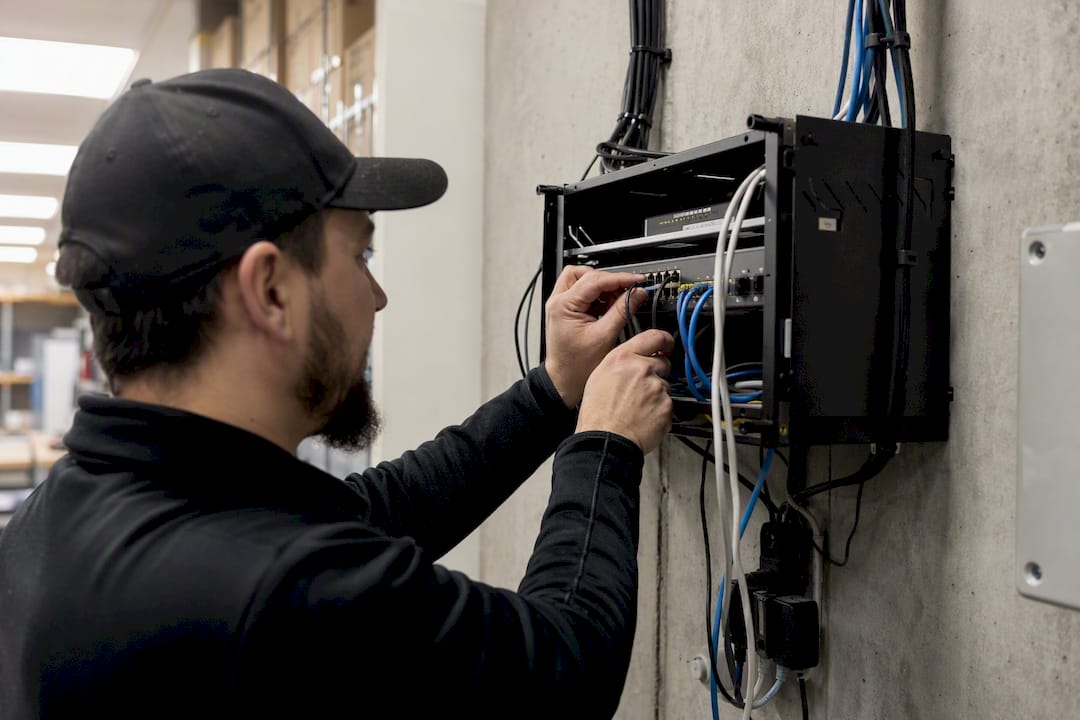
Firmware mismatches cause the second most common headache: a camera that connects but won’t support motion zones, metadata, or specific analytics features. This usually means the NVR’s ONVIF implementation doesn’t fully support that camera’s advanced feature set, even though basic video works fine.
Port forwarding and firewall issues surface most often on older network setups. Some cloud NVR adapters use outbound-only connections that need no manual configuration, but if remote access fails after installation, check whether your router’s firewall is blocking the required ports rather than assuming the NVR is broken.
Storage fills up faster than expected when retention policies aren’t tiered. If you’re burning through local storage or hitting cloud storage limits ahead of schedule, revisit your frame rate and retention settings on non-critical cameras before buying more storage.
Power interruptions causing gaps in the recording timeline point to a missing or undersized UPS. A recorder that reboots mid-outage loses footage during exactly the window you’re most likely to need it.
When to Migrate Fully to Cloud and When to Add Cloud Backup Instead
Full cloud migration earns its cost when you’re managing many scattered sites or need cloud-based AI analytics that a local unit can’t run. For a working camera setup on one or two properties, adding a cloud adapter or hybrid backup is the more cost-effective upgrade path. Centralizing alerting and retention policies across sites, rather than replacing hardware that still works, cuts administrative overhead without the expense of a full rebuild.
— Safes and Security Solutions
Get Your System Sized Right With Safes and Security Solutions
You’ve seen the checklist: bandwidth math, ONVIF verification, tiered retention, local failover. Safes and Security Solutions builds and stocks the exact NVR classes that checklist points to, from 4-channel home units to 32-plus channel commercial systems with edge-native analytics, so you’re not stitching together a compatibility guess from three different vendors.
If you manage a multi-site residential portfolio, the centralized security concerns look a lot like what Milwaukee Property Management navigates across its own managed properties, which is exactly the scale hybrid and edge-native systems are built to simplify. For a small commercial property that also needs asset protection beyond camera coverage, pairing your surveillance upgrade with a rated safe, like the American Security BFS912 Burglary and Fire Safe, rounds out your security plan in one purchase.
Visit the product pages to compare channel counts and storage capacity, or contact Safes and Security Solutions directly to request a quote for a custom configuration sized to your site count and retention needs. Every system ships with manufacturer warranty coverage and support access, so you’re not troubleshooting a firmware mismatch alone.
Sources
For deeper technical context on the cloud storage side of these decisions, Backblaze’s B2 media workflow documentation breaks down cost-effective, S3-compatible object storage with a 99.9% uptime SLA and no minimum storage duration fee, useful when comparing per-gigabyte pricing against flat-rate plans.
Microsoft’s OneDrive video storage guidance documents how cloud platforms handle large media files and accessibility, relevant background for anyone assuming an always-online cloud system needs no local failover.
For a broader look at how the cloud NVR market segments into cloud-first, hybrid, and on-prem-plus-cloud vendors, the industry roundup on cloud NVR architectures offers useful context on how these categories are typically defined, without serving as an endorsement of any specific product.
- Backblaze B2: Cloud storage for media workflows
Recommended
- Reolink 36-Channel NVR with 48TB Storage Capacity – Safes and Security Direct
- Nocturnal series Lorex 4K Wired NVR Security System (32-Camera Capable – Safes and Security Solutions
- V Series Lorex Connect 4K 8-Channel NVR - 1TB – Safes and Security Solutions
- Amcrest 4K 32CH AI NVR, Smart NVR, Facial Recognition, Face Detection – Safes and Security Direct